How QR Code Table Ordering Works, and How to Set It Up
- Written by
- Ala Baganne
- Published on
- Oct 3, 2026
- Read time
- 3 min
- Category
- Guides
Guests scan a QR code, order from their phone and the order reaches your team with the table number. Here is how it works on both sides, and what you need to start.
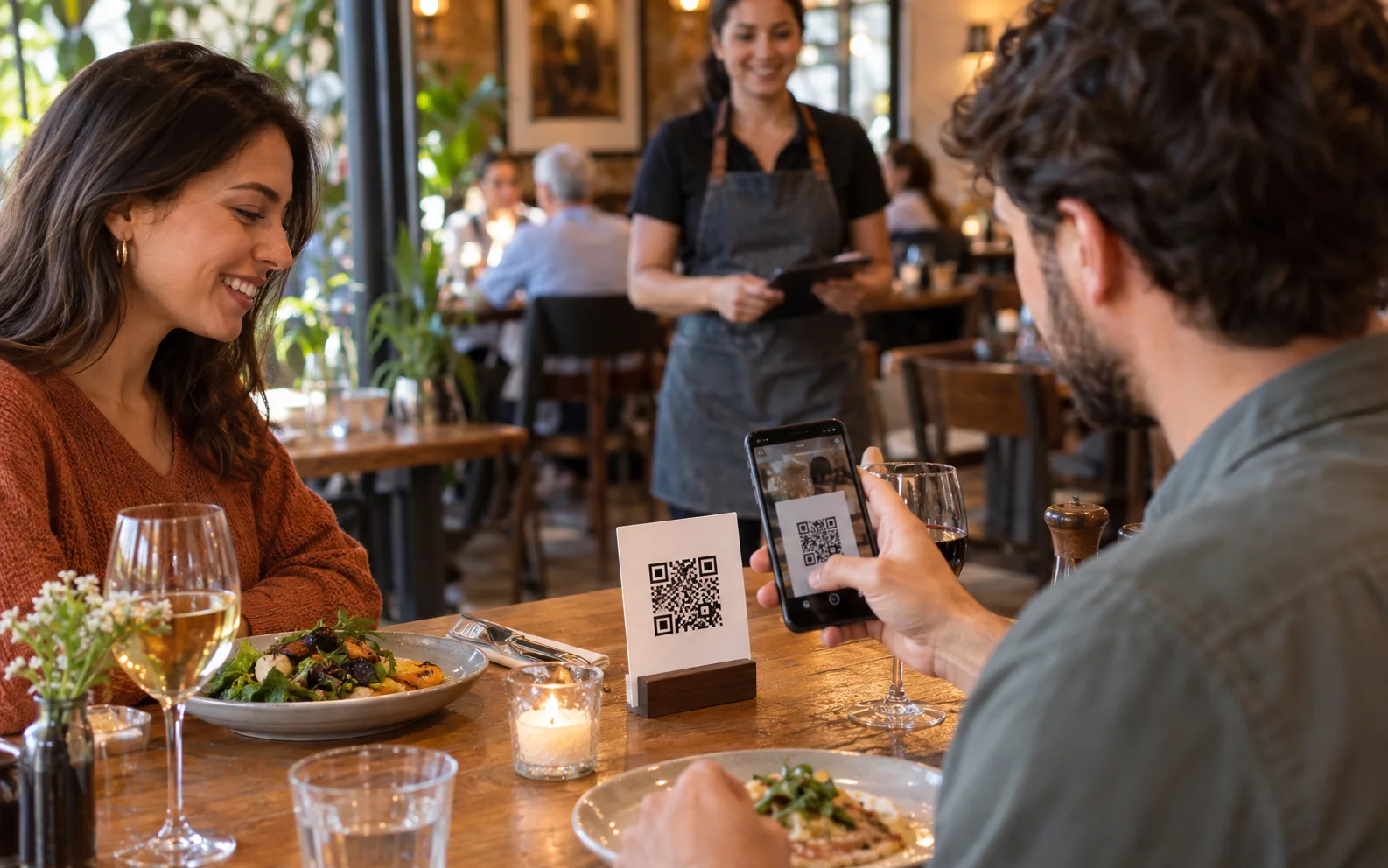
Short answer: with QR code table ordering, each table has its own QR code. A guest scans it, opens your menu in their phone's browser, picks dishes and sends the order. The order appears on your team's screen with the table number, and staff move it from accepted to ready. Guests do not install anything, and with MenuMate they pay in cash as usual.
What the guest does
- Scans the code on the table with the phone camera.
- Browses the menu, which opens in the browser with prices, descriptions and photos.
- Adds dishes to the cart and sends the order. The table number comes from the QR code, so the guest does not type it.
- Gets a confirmation that the order is on its way to the kitchen, then waits for it at the table.
What your team does
- Sees the new order on the dashboard as soon as it is sent, with the table number and every dish.
- Accepts it, so everyone knows someone is on it.
- Prepares it and marks it ready when it leaves the kitchen or the bar.
- Completes it once it is served. The guest pays in cash, as they would after ordering from a server.
The dashboard works on any phone, tablet or computer with a browser, so you can keep it at the counter or in the kitchen.
What you need to start
- An online menu with your dishes and prices.
- One QR code per table, printed and placed where guests see it.
- A screen for orders: a tablet or phone at the counter is enough.
- An internet connection for that screen.
With MenuMate, you create the menu, then download the QR code for each table from the dashboard. Staff can get their own logins, so servers and cashiers follow orders on their phones.
Tips for a smooth first service
- Number your tables clearly and use the same numbers in your QR codes.
- Test every code from the guest's seat before opening.
- Agree who watches the screen during service, so no order waits.
- Keep ordering off at first if you want to start slowly. MenuMate can run as a menu only, then you turn ordering on when the team is ready.
Frequently asked questions
Do guests need to download an app?
No. The menu and the cart open in the phone's browser.
How do guests pay?
With MenuMate, in cash, the way they pay today. MenuMate takes the order but does not take card payments, so there are no payment fees or commission. Some other ordering tools take card payment online, usually with a fee per order.
Can I still take orders the usual way?
Yes. Table ordering sits next to your servers; it does not replace them. Guests who prefer to order in person can still do so.
What does it cost?
MenuMate is free, including the menu, the QR codes and table ordering. For other tools, see our comparison of QR code menu apps.
Set it up tonight
Create your free MenuMate account, add your menu and print your table codes. Your first table order can come in tomorrow.